
From Visual Systems to Pinterest Boards: n8n Workflow for Automated Pin Creation
Step-by-step guide to automated AI image generation and Pin creation for visual brand system testing.

We’re already on part 3 of my automated visual system testing engine. And this is where things really get interesting.
In part 1, we covered the rationale behind this project and my tool selection for the job. In part 2, you hopefully followed along and used the prompts to generate 3 visual systems to test.
Today, we’ll go through the step-by-step setup of the n8n workflow that automates AI image generation and uploading, so you can build it once and chill afterwards 🦥.
So buckle up, my friends. This is going to be a fun one!
Running n8n Locally
First things first, let’s get started with n8n. Because I set out to make this project free to run, I used a self-hosted community version of n8n with Docker Desktop.
You can use a cloud version instead (which has a free trial period) to get started straight away. But honestly, once you get through the initial setup for the community version, you won’t regret the extra effort upfront 😉.
Before we start, you need to download Docker Desktop for your OS.
The installation involves several steps, but n8n provides a comprehensive guide via the command line, plus a video that walks through the same setup inside Docker Desktop.
I won't cover every step here, but I'll highlight the key bits.
First, make sure that you create a data volume in Docker. This ensures your n8n data stays persistent, so if you restart Docker or update n8n, your data doesn’t just go poof.
Second, you need to make sure your environment variables are configured properly. We will be using a schedule trigger in this workflow, so the correct timezone is crucial if you don’t want to get an email notification at 2 am.
Since I’m based in the UK, my environment variables are set up as follows:
GENERIC_TIMEZONE=Europe/London
TZ=Europe/London
N8N_ENFORCE_SETTINGS_FILE_PERMISSIONS=true
N8N_RUNNERS_ENABLED=true
You also need to enable task runners to run custom JavaScript code via the Code node.
Once installation is completed, you can log in to your local version of n8n. The first time you open it, you should get an invite to request an activation key. Make sure you do so, as it will enable you to use most paid features for free.
One warning: the activation key could take a few days to arrive. The first time I tried it about a year ago, I got the email within an hour. But when I tried again about two months ago, the key didn’t arrive until 4 or 5 days later.
So you might need to be patient. But while you’re waiting, you can still get started with the actual workflows below 😜!
n8n Workflow Overview
This n8n workflow automates the process of testing visual design systems by generating AI images and posting them to Pinterest daily.
As you can see from the screenshot below, the structure looks quite involved at first glance. So I wanted to give a brief explanation of the logic before we jump into the setup.
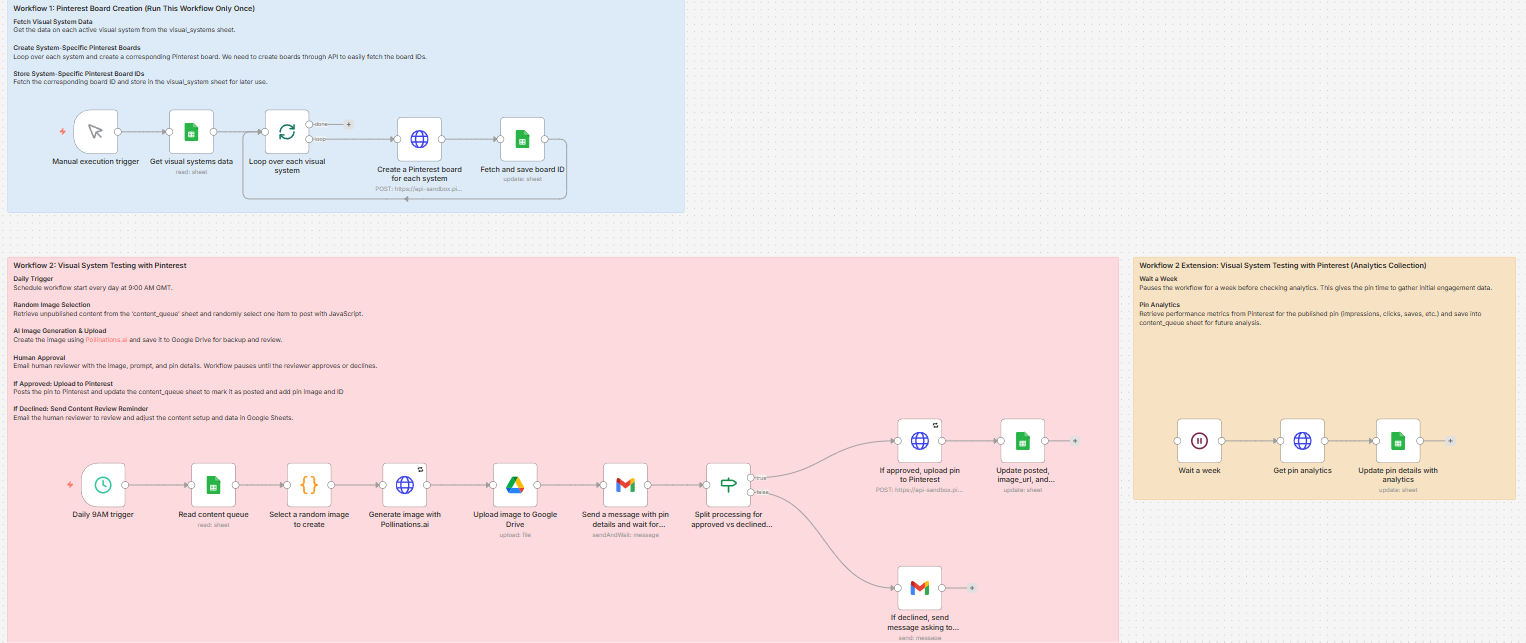
There are essentially two workflows plus an optional extension. This is by design, and the exact reasons will become clearer as we go along. For now, this is what each workflow aims to achieve:
Workflow 1: Creates Pinterest boards for each visual system and fetches their IDs (one-time setup)
Workflow 2: The main daily automation that:
Triggers daily at 9 am
Randomly selects unpublished content
Generates AI images with Pollinations.ai
Sends approval emails with workflow pause
Posts approved pins to Pinterest
Updates tracking data in Google Sheets
Workflow 2 Extension: Optionally collects pin performance metrics after 7 days (requires upgraded Pinterest API)
Before we dive into the build, let's make sure you have everything ready.
To help you get started faster, you can download the JSON file template for this workflow (which you can import into n8n) from Google Drive. You’ll also find the Google Sheet template from last week there:
Prerequisites
n8n instance (cloud or self-hosted)
Pinterest Business account with API access
Google OAuth credentials setup in n8n (requires a free Google Cloud account):
Google Sheets
Gmail
Google Drive
Optionally, an API key for an AI image generation model of your choice (none required if using Pollinations.ai)
Helpful Commentary on Prerequisites
When working on automation projects, I often spend quite a bit of time figuring out how to set up all the external app connections. So I've added this section to highlight a few helpful points.
When you initially request the Pinterest API (as I described in part 1), you get Trial Access. You can generate access tokens for testing the automation in the Sandbox environment with fairly permissive scopes (excluding analytics). But for the Production tokens, access is limited to 3 read-only scopes.
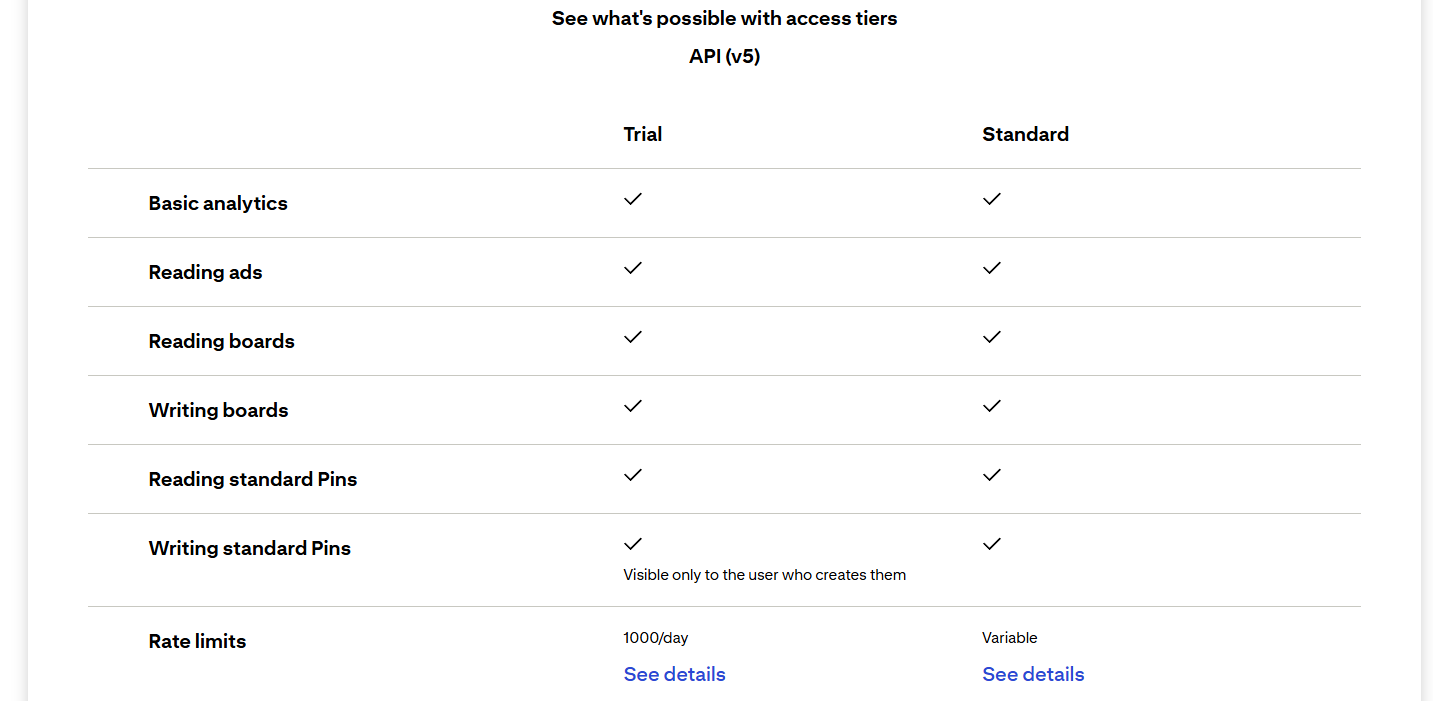
In practical terms, this means you can fiddle with boards and pins in the test environment as much as you like, but none of these will be visible to other users. This is actually helpful to start with, because we don’t want to spam Pinterest while testing the workflow. So the Sandbox access token works well for now.
Setting up Google credentials is a bit of a pain at first. But you only need to add those once. The n8n docs provide very comprehensive instructions with an accompanying video. Just make sure you have Google Sheets API, Google Drive API, and Gmail API enabled in APIs & Services.
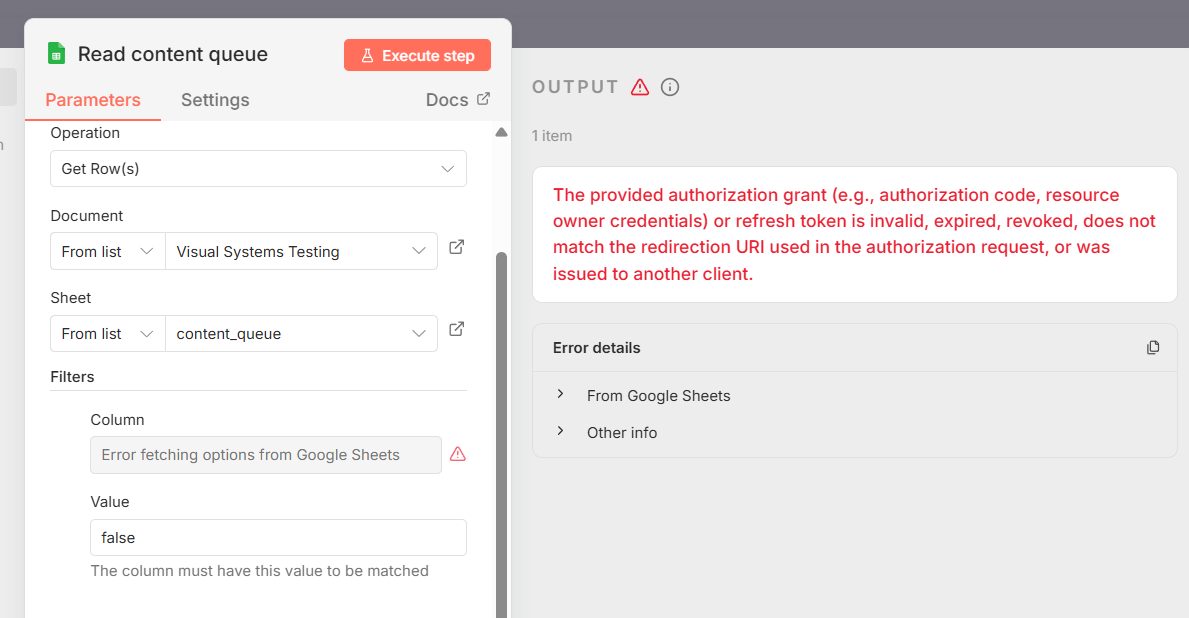
Also, if your app has the Publishing status set to Testing and the User type set to External (as I have), you will need to reconnect your Google account every 7 days in the n8n credentials modal; otherwise, your workflow will throw an error:
Finally, as I said previously, I’m using Pollinations.ai in this workflow for AI image generation because it’s free, community-driven, and doesn’t require an API key. This was a practical choice for this demonstration, but there are a few caveats.
While fairly good, Pollinations.ai is not a market leader in AI image generation. If you’re serious about testing your visual systems, it might be a good idea to use more advanced commercial models.
The best approach would be to use the same model family that you used to generate the image prompts and pin details, as it will get you the closest to your sample visuals. That said, the goal is not to create perfect AI images but to test the general features of different visual systems. So some variation within each system is OK.
Workflow 1: Pinterest Board Creation
The purpose of this workflow is to create Pinterest boards for each visual system and store the board IDs in the visual_systems sheet of the Google Sheet from part 2.
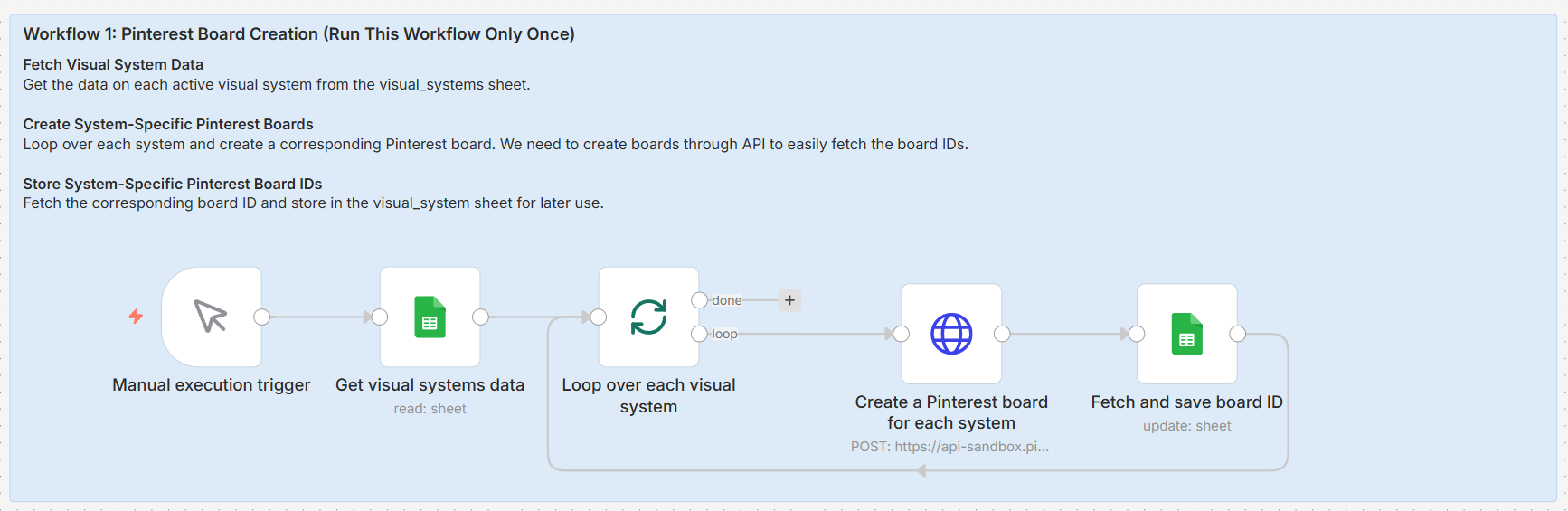
You only need to run this once during initial setup because there is no simpler way of getting Pinterest board IDs, which we’ll need in workflow 2.
Node 1: Manual Trigger
Node type: Manual Trigger
Purpose: Allows you to run this workflow manually
Configuration: None – drag it from the node panel
Node 2: Get Visual Systems Data
Node type: Google Sheets
Operation: Get Row(s)
Configuration:
Document: Select your Google Sheet
Sheet: Select
visual_systemsFilters: Add a filter where
active=true
Node 3: Loop Over Each Visual System
Node type: Split In Batches
Purpose: Processes each system one at a time
Configuration:
Batch Size: 1
Node 4: Create a Pinterest Board for Each System (Inside the Loop)
Node type: HTTP Request
Method: POST
Configuration:
URL:
https://api-sandbox.pinterest.com/v5/boardsAuthentication: None
Send Headers: Enable
Headers:
Authorization:Bearer YOUR_PINTEREST_SANDBOX_ACCESS_TOKENContent-Type:application/json
Send Body: Enable
Body Content Type: JSON
Specify Body: Using JSON
{
  "name": "Visual System Design Test Board - {{ $json.system_id }}",
  "description": "Test board for visual system design automation for {{ $json.system_name }} system",
  "privacy": "PUBLIC"
}
Node 5: Fetch and Save Board ID (Inside the Loop)
Node type: Google Sheets
Operation: Update Row
Configuration:
Document: Your Google Sheet
Sheet:
visual_systemsMapping Column Mode: Map Each Column Manually
Columns to match on:
system_idValues to Update (Expression):
system_id (using to match):{{ $('Loop over each visual system').item.json.system_id }}board_id:{{ $json.id }}
Run Workflow 1 (Once Only):
Click “Execute Workflow”
Check your Pinterest account – you should see new boards created in Sandbox (only visible to you)
Check your visual_systems sheet – board_id column should now be populated
Workflow 2: Daily Pin Creation
This is the main automation. It runs daily to select, generate, and post one random pin to Pinterest after approval by a human reviewer.
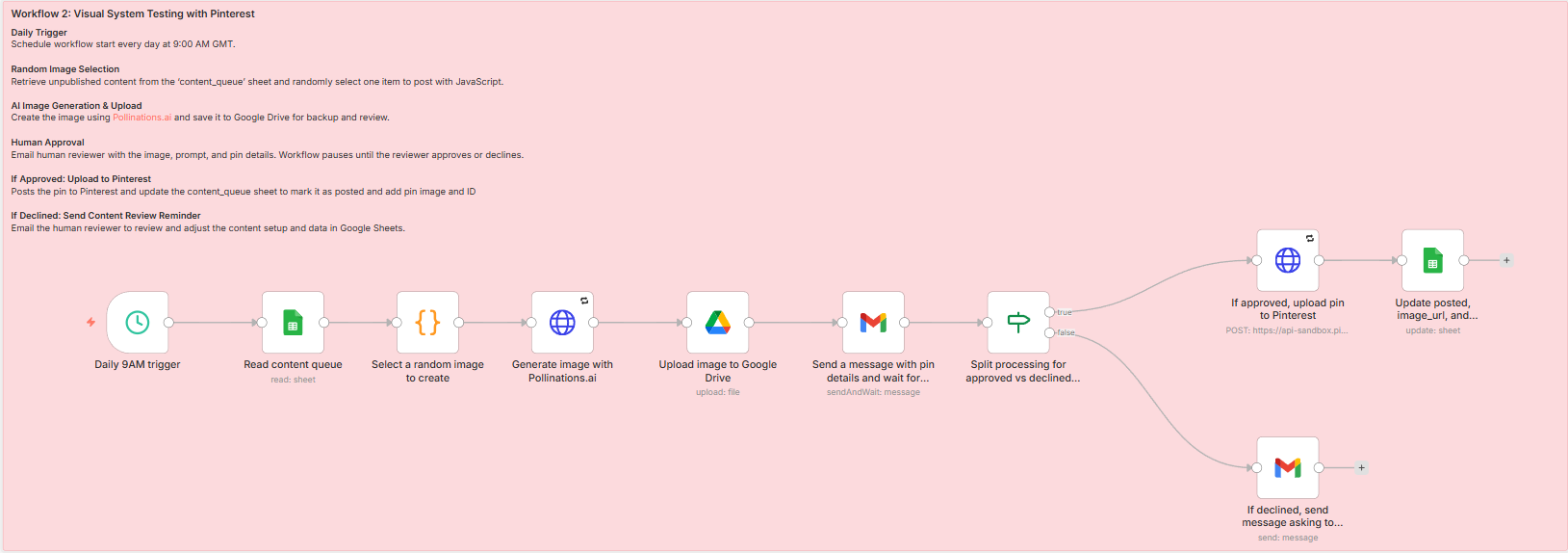
Node 1: Daily 9AM Trigger
Node type: Schedule Trigger
Configuration:
Trigger Interval: Days
Days Between Triggers: 1
Trigger at Hour: 9am
Trigger at Minute: 0
Note: n8n will use the timezone you set during the installation
Node 2: Read Content Queue
Node type: Google Sheets
Operation: Get Row(s)
Configuration:
Document: Your Google Sheet
Sheet: Select
content_queueFilters: Add a filter where
posted=falseOptions → Enable Return All Matches
Node 3: Select a Random Image to Create
Node type: Code
Purpose: Randomly selects one item from the content_queue
Mode: Run Once for All Items
Language: JavaScript
// Pick one of the visual systems from the input items at random
const systems = $input.all();
const index = Math.floor(Math.random() * systems.length);
return [systems[index]];
Node 4: Generate Image with Pollinations.ai
Node type: HTTP Request
Purpose: Generates an AI image from the stored prompt
Method: GET
Configuration:
URL:
https://image.pollinations.ai/prompt/{{ encodeURIComponent($json.image_prompt) }}/?width=1000&height=1500&model=fluxOptions → Response:
Include Response Headers and Status: Enable
Response Format: File
Put Output in Field:
image
Settings:
Retry On Fail: Enable
Max. Tries: 3
Wait Between Tries (ms): 5000
Node 5: Upload Image to Google Drive
Node type: Google Drive
Purpose: Stores the generated image for review and record keeping
Operation: Upload
Configuration:
Input Data Field Name (Fixed):
imageFile Name:
{{ $now.format("yyyyMMdd_HHmmss") }}_{{ $('Select a random image to create').item.json.content_id }}.jpgParent Drive: My Drive
Parent Folder: Create a folder called Pinterest_images and select it
Node 6: Send Message with Pin Details and Wait for Approval
Node type: Gmail (human in the loop)
Purpose: Sends the pin details for human approval and pauses the workflow
Operation: Send and Wait for Response
Configuration:
To: Reviewer email
Subject:
Pinterest Image + Pin Approval Request
<p>Hi [NAME],</p>

<p>Please check and approve the following for your new pin:</p>

<p><b>System name: </b>{{ $('Select a random image to create').item.json.system_name }}</p>
<p><b>Image link: </b> <a href={{ $json.webViewLink }}>{{ $json.webViewLink }}</a></p>
<p><b>Image prompt: </b> {{ $('Select a random image to create').item.json.image_prompt }}</p>
<p><b>Pin title: </b>{{ $('Select a random image to create').item.json.pin_title }}</p>
<p><b>Pin description: </b>{{ $('Select a random image to create').item.json.pin_description }}</p>
<p><b>Alt text: </b>{{ $('Select a random image to create').item.json.alt_text }}
Response Type: Approval
Approval Options: Approve and Disapprove
Node 7: Split Processing for Approved vs Declined
Node type: IF
Configuration:
Condition:
{{ $json.data.approved }}equals (boolean)true
Node 8a: If Approved, Upload Pin to Pinterest
Node type: HTTP Request
Method: POST
Configuration:
URL:
https://api-sandbox.pinterest.com/v5/pinsSend Headers: Enable
Headers:
Authorization:Bearer YOUR_PINTEREST_SANDBOX_ACCESS_TOKENContent-Type:application/json
Send Body: Enable
Body Content Type: JSON
Specify Body: Using JSON
{
  "board_id": "{{ $('Select a random image to create').item.json.board_id }}",
  "title": "{{ $('Select a random image to create').item.json.pin_title }}",
  "description": "{{ $('Select a random image to create').item.json.pin_description }}",
  "alt_text": "{{ $('Select a random image to create').item.json.alt_text }}",
  "media_source": {
    "source_type": "image_url",
    "url": "{{ 'https://image.pollinations.ai/prompt/' + encodeURIComponent($('Select a random image to create').item.json.image_prompt) + '/?width=1000&height=1500&model=flux' }}"
  }
}
Settings:
Retry On Fail: Enable
Max. Tries: 3
Wait Between Tries (ms): 5000
Node 8b: If Declined, Send Review Message
Node type: Gmail
Purpose: Notifies the reviewer to update the Google Sheet before rerunning the workflow
Operation: Send
Configuration:
To: Reviewer email
Subject:
Review the Inputs for Your New PinEmail Type: HTML
<p>Hi [NAME],</p>
<p>You did not approve the following inputs for your new pin:</p>

<p><b>System name: </b>{{ $('Select a random image to create').item.json.system_name }}</p>
<p><b>Image link: </b> <a href={{ $json.webViewLink }}>{{ $json.webViewLink }}</a></p>
<p><b>Image prompt: </b> {{ $('Select a random image to create').item.json.image_prompt }}</p>
<p><b>Pin title: </b>{{ $('Select a random image to create').item.json.pin_title }}</p>
<p><b>Pin description: </b>{{ $('Select a random image to create').item.json.pin_description }}</p>
<p><b>Alt text: </b>{{ $('Select a random image to create').item.json.alt_text }}</p>
<p>Please make sure this is correct, and if not, you can trigger the workflow manually or upload the pin yourself.</p>
<p>If you are not happy with the inputs, review your Google Sheets with content instructions, adjust/edit as needed, then test and rerun the workflow.</p>
Node 9: Update Posted Status in Sheet
Node type: Google Sheets
Purpose: Marks the pin as posted and logs key details
Operation: Update Row
Configuration:
Document: Your Google Sheet
Sheet:
content_queueMapping Column Mode: Map Each Column Manually
Columns to match on:
content_idValues to Update (Expression):
content_id (using to match):{{ $('Select a random image to create').item.json.content_id }}image_url:{{ 'https://image.pollinations.ai/prompt/' + encodeURIComponent($('Select a random image to create').item.json.image_prompt) + '/?width=1000&height=1500&model=flux' }}posted_at:{{ $now.format("yyyy/MM/dd HH:mm:ss") }}pin_id:{{ $json.id }}posted:true
Testing & Publishing Workflow 2
Before turning this on fully, run through a few manual tests to make sure everything behaves as expected.
✅ Test manually first:
Execute the workflow manually using the Execute workflow from Daily 9AM Trigger button
Check each node’s output to verify it’s working
✅ Test the approval process:
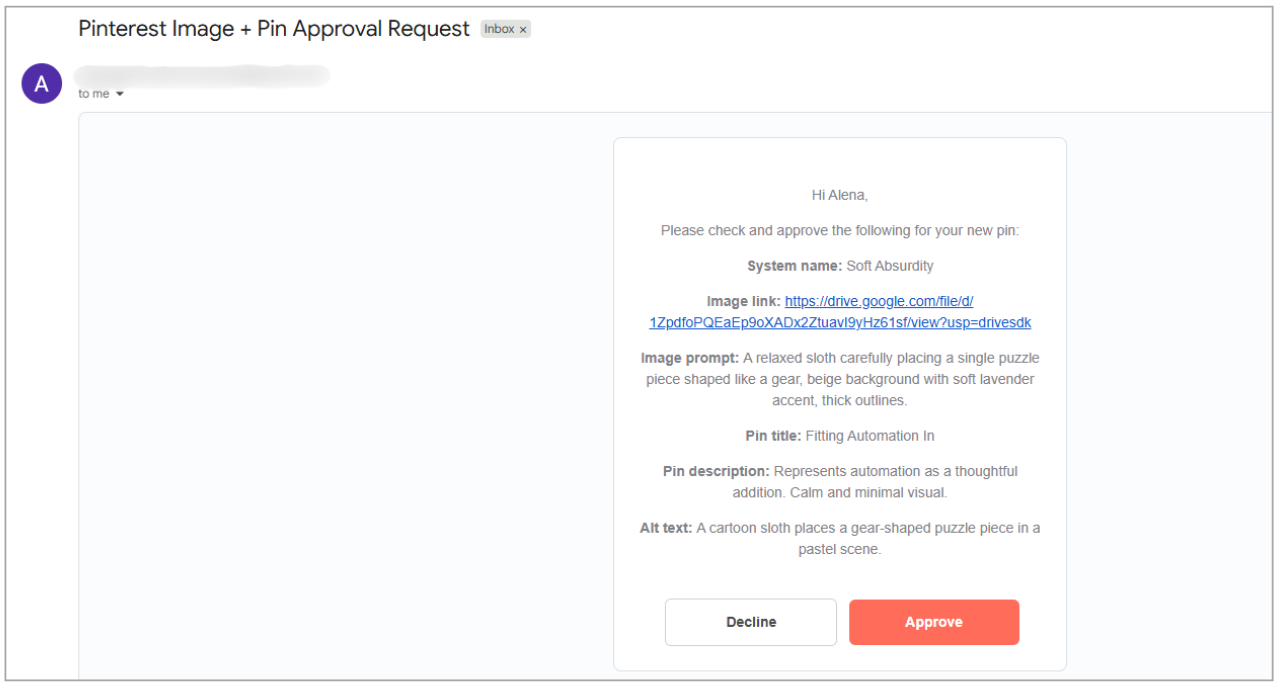
Check your email for the approval request looks like this:
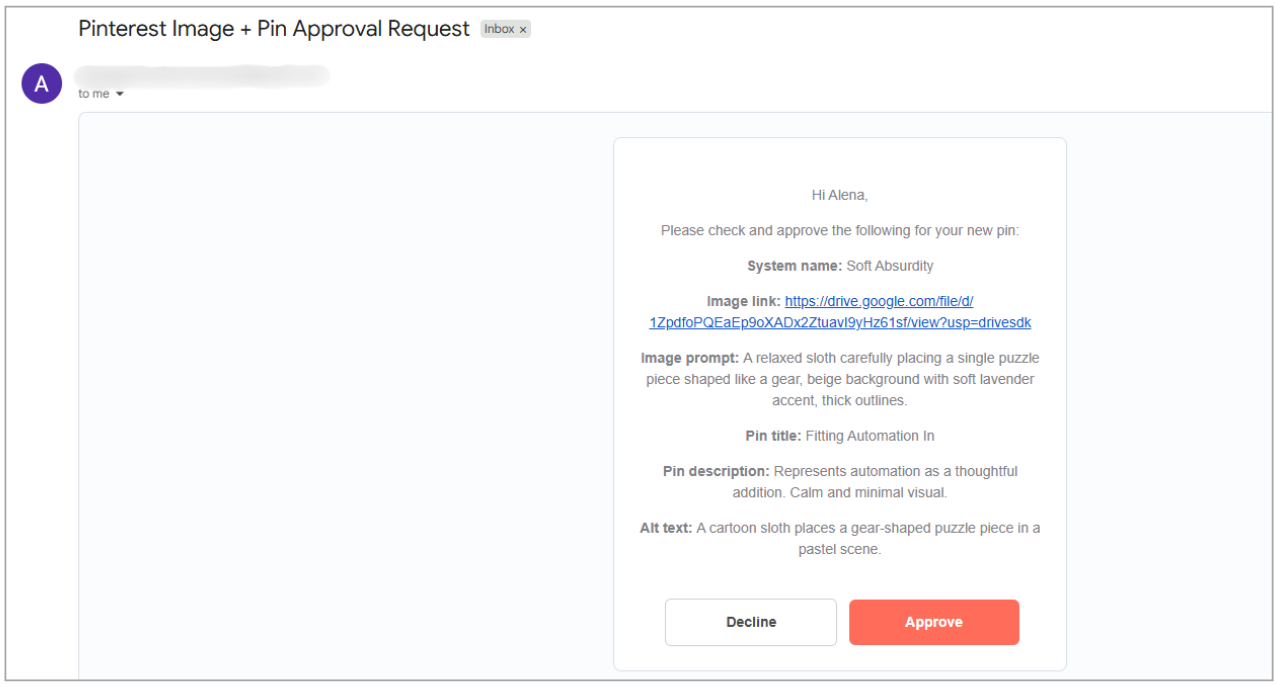
Click Approve or Decline
Verify the workflow continues correctly
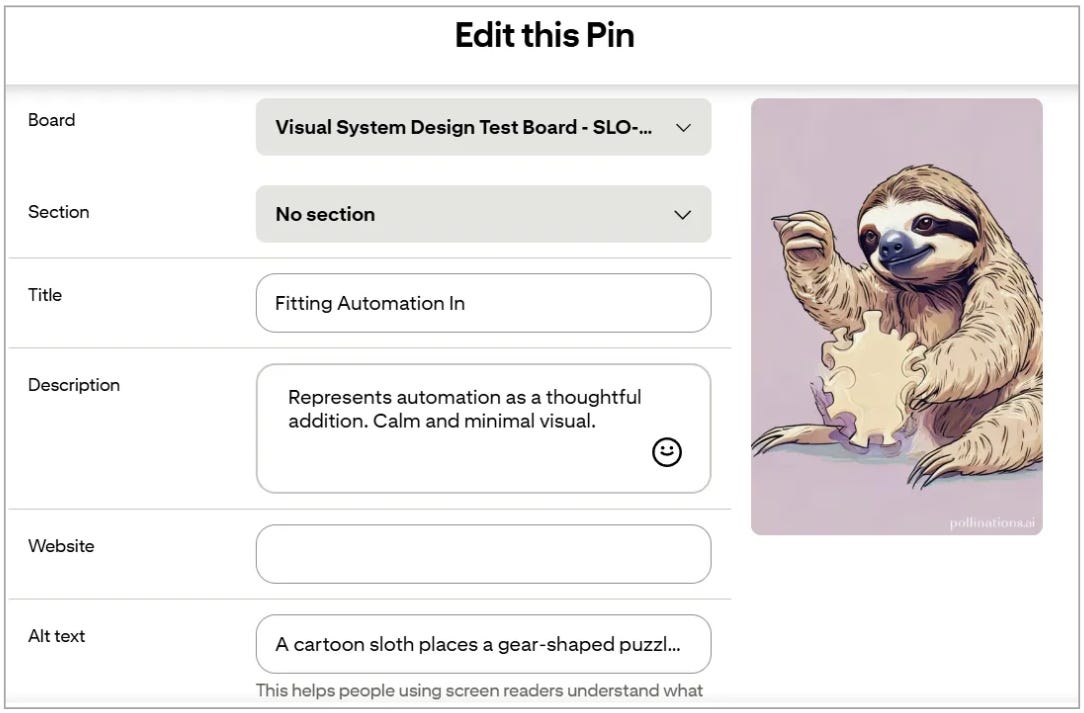
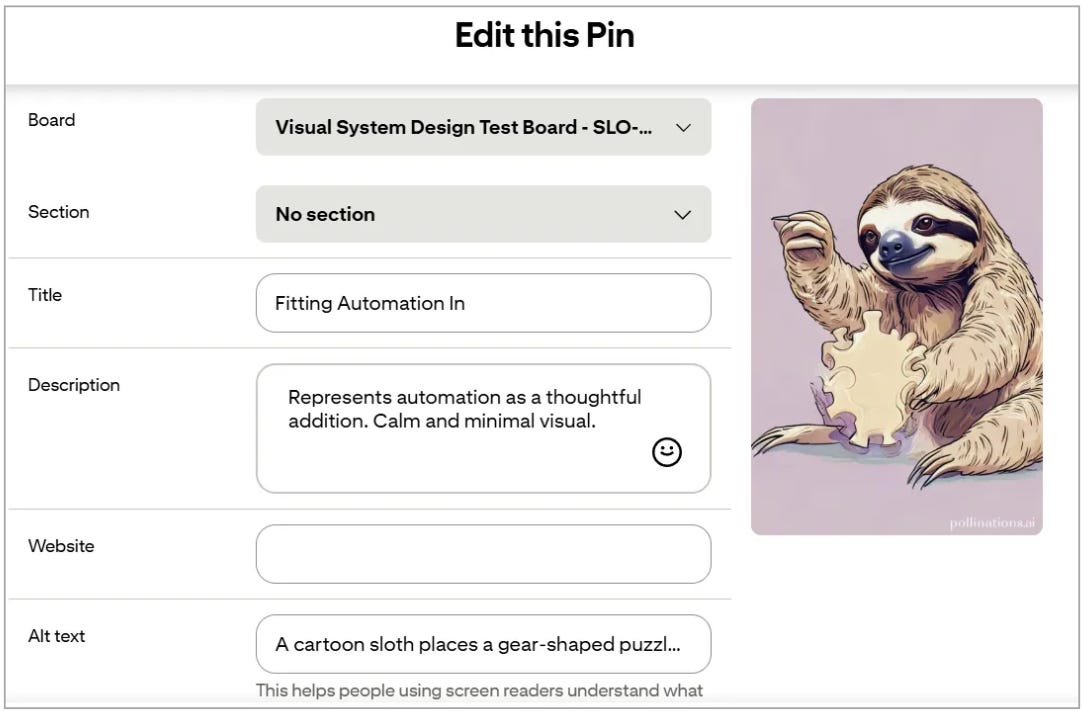
✅ Check Pinterest:
Verify the pin was posted to the correct board
Check that the image, title, and description match - you should see your new pin in your profile as normal:
✅ Verify Google Sheets:
Confirm the posted status changed to TRUE
Check that posted_at, pin_id, and image_url were populated:

✅ Publish the Workflow:
Click the Publish button in the top right corner of the workflow
The automation will now run daily at 9 AM
Keep an eye on the first few runs to make sure approvals and posting behave consistently
After that, your visual system testing engine is officially live 🥳.
Workflow 2 Extension: Analytics Collection (Optional)
This workflow extension is designed to collect the created pin analytics into the content_queue sheet for analysis of the visual systems. This part requires the Pinterest Standard Access API.
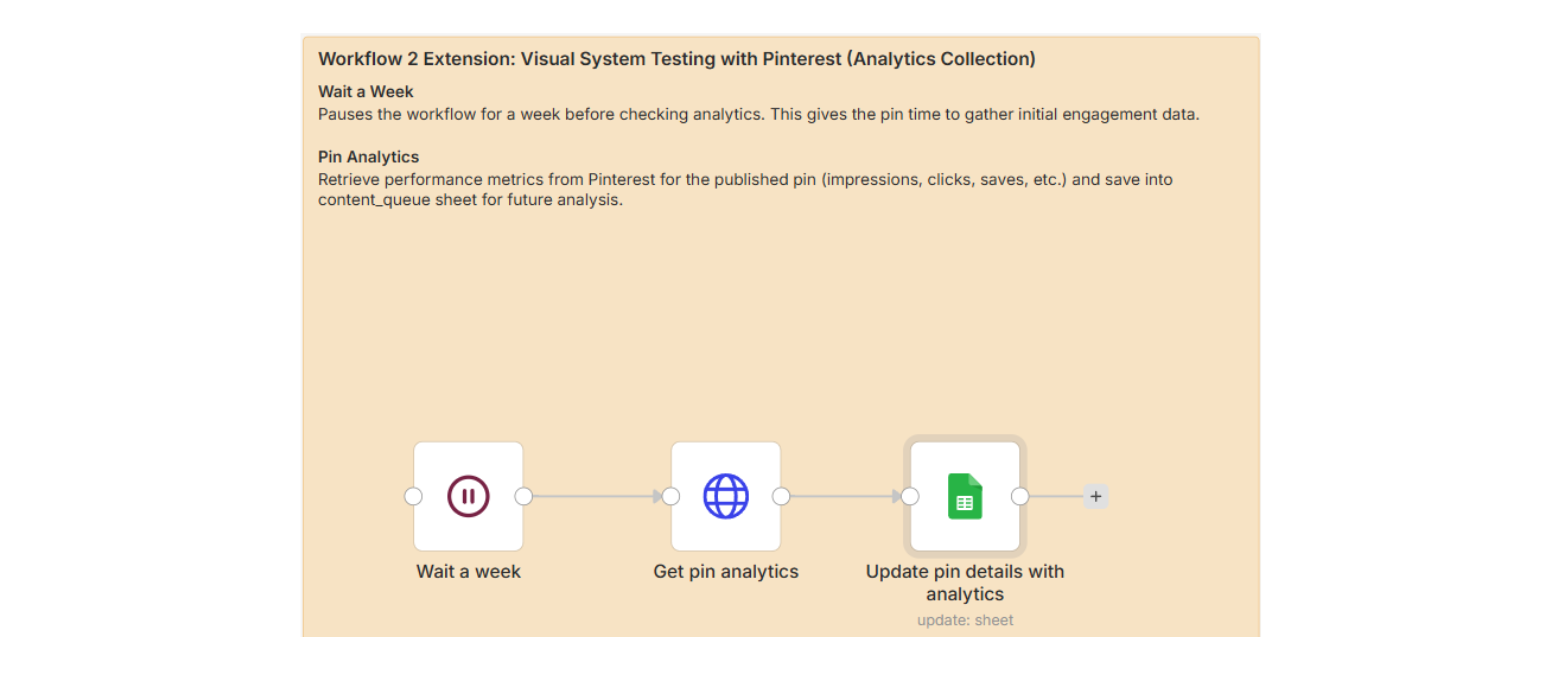
Node 10: Wait a Week
Node type: Wait
Wait Duration: 7 days
Connect: From “Update Sheet” node
Node 11: Get Pin Analytics
Node type: HTTP Request
Method: GET
Configuration:
URL:
https://api.pinterest.com/v5/pins/{{ $json.pin_id }}/analyticsHeaders:
Authorization:Bearer YOUR_PINTEREST_STANDARD_ACCESS_TOKENContent-Type:application/json
Options → Response Format: JSON
Node 12: Update Pin Details with Analytics
Node type: Google Sheets
Operation: Update
Configuration:
Document: Your Google Sheet
Sheet:
content_queueMapping Column Mode: Map Each Column Manually
Columns to match on:
content_idValues to Update: (Map analytics data from API response)
impressions:saves:pin_clicks:(Add other metrics as needed)
Note on Pinterest API Access
If you’re using Trial Access tokens for Sandbox access, you will need to use Sandbox endpoints in your URL in the HTTP Request node (as we have above):
https://api-sandbox.pinterest.com/v5But for the Production use, you will need to upgrade the API to Standard Access and change the endpoints to:
https://api.pinterest.com/v5You won’t be able to post pins on your actual profile or retrieve analytics without this upgrade.
While the Standard Access API is free, it requires you to submit a demo video of your app, which shows two things:
How your app authenticates Pinterest users
The main Pinterest features your users will use
8 PM Pinterest Heartbreak
Originally, I planned to stick with the Sandbox option for this project and leave it there. But the curiosity got the better of me, and I decided to spend my Wednesday making a demo video for my workflow.
Five hours and countless retakes later, I happily submitted my video to Pinterest, requesting an upgrade … who emailed me back two hours later saying “Nope” 🫠.
I was heartbroken. Not just because I’m terrible at speaking on camera and that video took everything out of me, but also because I felt like I was letting you guys down. The workflow isn’t very useful for real-life testing if you can’t get Standard Access tokens.
But I wasn’t going to give up that easily … So next week, I will share how a random comment on Reddit led to a neat workaround with minimal changes, and an n8n forum discussion led to the alternative solution in Make 👀!
If you want to follow along (and learn what actually works in AI automation), subscribe below and share with friends and colleagues who might enjoy this experiment.
And if you have automation challenges you’d like to see me tackle, reply to this email, drop a comment, or join my subscriber chat and let me know.

Follow me on LinkedIn, where I’ll also be posting interesting and fun tidbits.
Clear, practical walkthrough. This is a great example of how automation can turn visual system testing into a repeatable, low-effort process
Very detailed and step by step guide @Alena, thanks for sharing and also the workflow part without any email-wall or pay-wall in front of it! Super job!!